
Figma plugin
Find Untokenized Values in Figma
Scan every layer for hardcoded values that bypass Figma Variables — grouped by property type with export-ready reports.
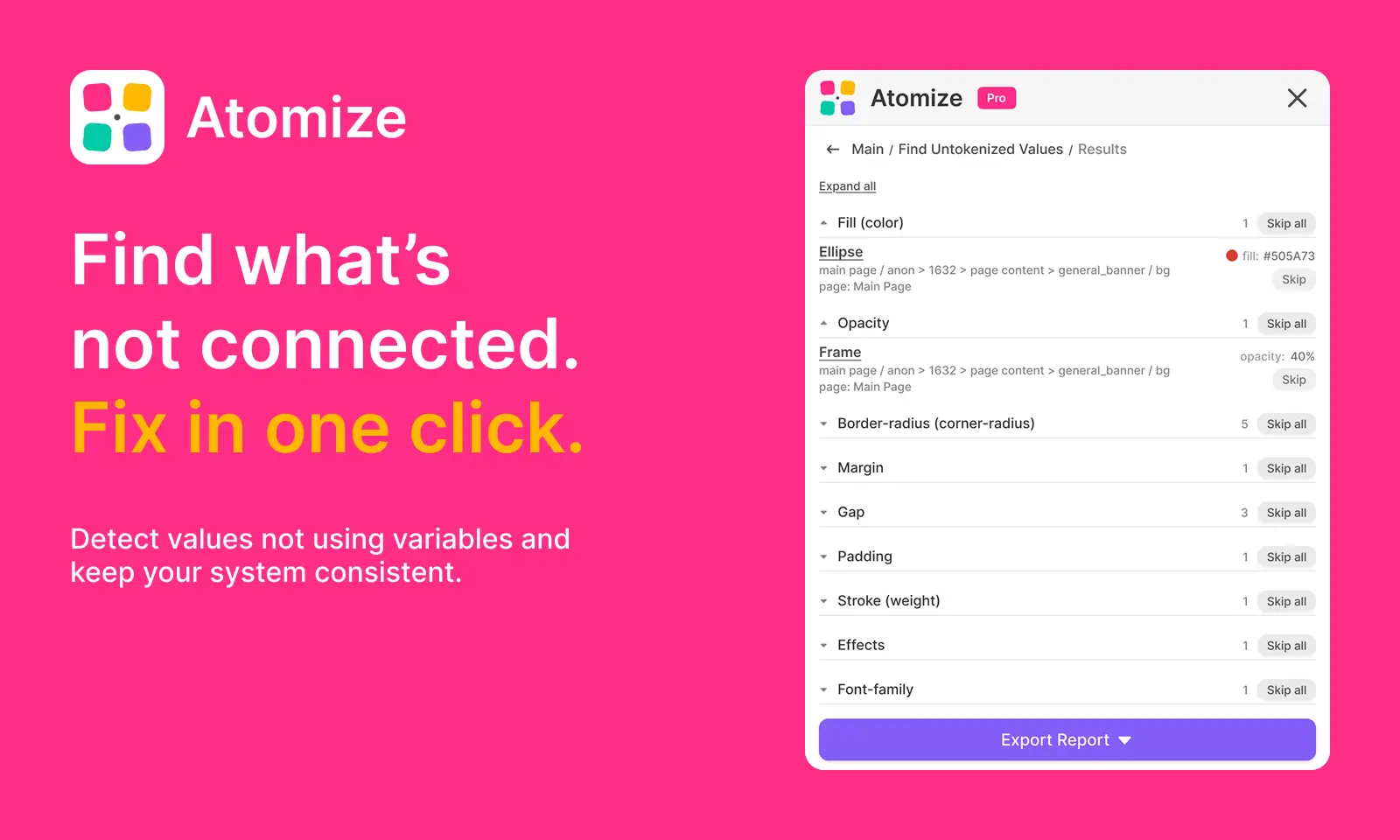
Find Untokenized Values is an Atomize audit that walks your Figma file, page, or selection and lists every property still stored as a literal instead of a Figma Variable alias. Atomize checks boundVariables on each layer — not whether pixels look on-brand — so you get an honest inventory before library publish, dark-mode work, or design-to-code export.
In short
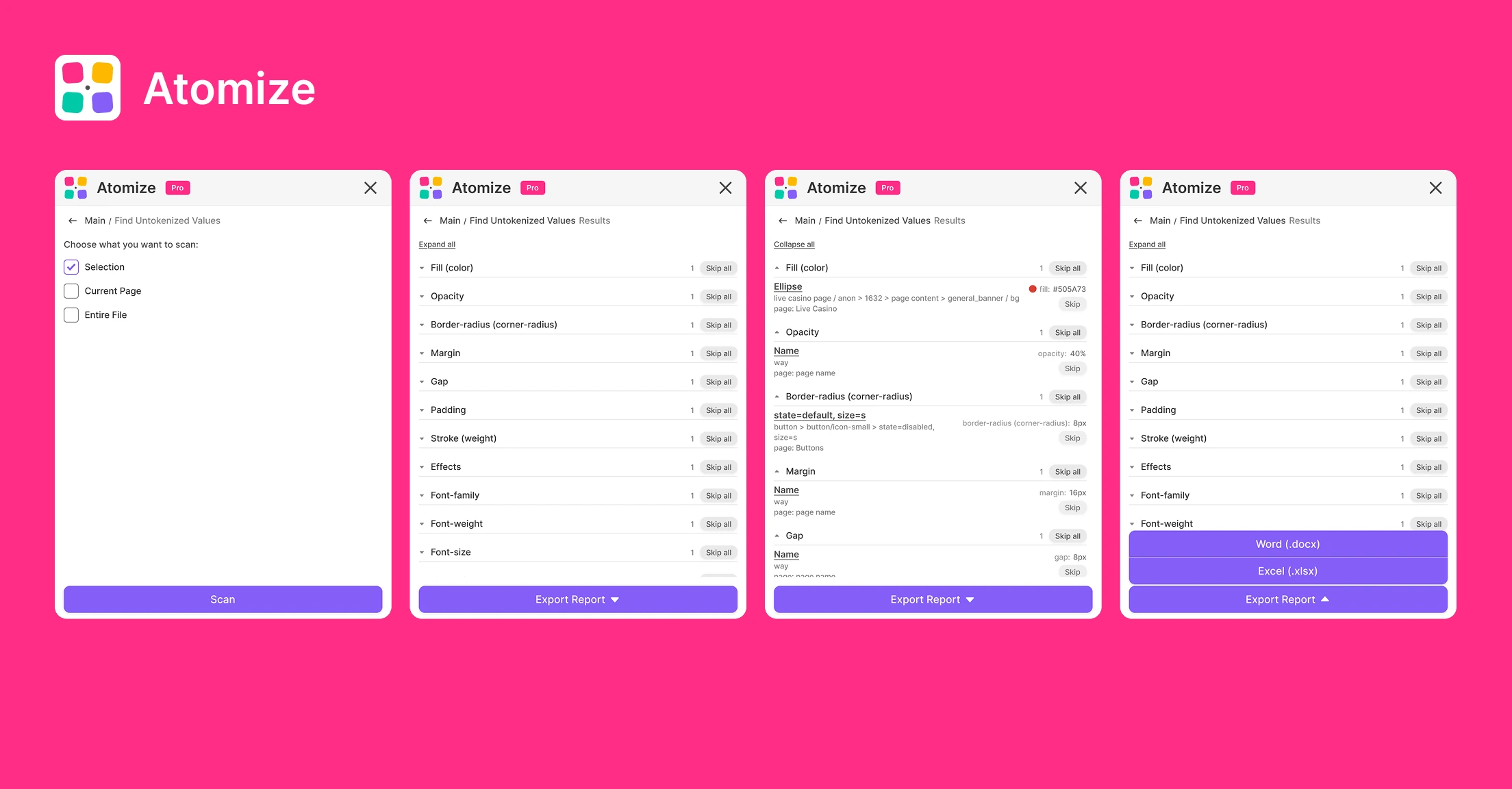
- Scopes: Selection, Current Page, or Entire File (file scan warns about runtime on large files).
- Thirteen property categories: fill, stroke, radius, gap, margin, padding, opacity, effects, and four typography metrics.
- Each finding includes layer path, raw value, and a suggested token matched from local variable collections.
- Click a layer name to jump to it on the canvas; skip noise per item or per group.
- Export JSON or XLSX (skipped items excluded) for design-ops tickets and regression tracking.
Who this is for
Design system leads use Find Untokenized Values to measure design token adoption before a release. Product designers run it after migrations, copied frames, or hotfixes. Front-end developers pair exports with CI or handoff checks so code does not inherit literals the file never bound. If you only need a binding percentage first, run Coverage Audit in the dashboard, then use this tool for the deep property-level pass — see our coverage vs untokenized comparison.
How it works in Atomize
- Open the Atomize plugin → Dashboard → Find Untokenized Values.
- Choose Selection, Current Page, or Entire File.
- Click Scan. Progress messages cover layer walk and token comparison.
- Review results grouped by category (Fill, Padding, Font size, etc.).
- Select a layer name to zoom and highlight the node in Figma.
- Use Skip on false positives; restore skipped groups when needed.
- Export Report → JSON or XLSX for your team workflow.
What counts as untokenized
A property is tokenized only when Figma stores a VARIABLE_ALIAS in boundVariables for that slot (including paint-level color bindings). Matching hex or px values beside an existing primitive still report as untokenized until someone binds them. Gradients without a fill style, hardcoded effects without effect styles, and typography literals on TEXT nodes all surface in the report. Icon and banner subtrees use sensible skips so decorative assets do not drown signal.
Suggested tokens
During the scan Atomize loads local variable collections, resolves alias chains, and maps literals to the closest COLOR or FLOAT step. Semantic atoms win over raw primitives when both match. Suggested names appear in exports — use them when rebinding in the Variables panel or when filing cleanup tasks. For a full rebinding workflow and category-by-category detail, read the Find Untokenized Values guide.
Recommended workflow
- Before library publish: scan Entire File, export, fix top categories (often padding and radius).
- Before dark mode: tokenize fills first, then run Contrast Audit.
- After renaming a primitive: use Find & Replace Variables to retarget semantic aliases in one pass.
- Before MCP or AI codegen: clean literals so agents read token names, not hex — see Figma MCP.
- Monthly hygiene: rescan after large imports or community component drops.
FAQ
The tool is built for audit, navigation, and export. You bind variables in Figma (or use export data to drive cleanup). Atomize focuses on finding every gap with suggested token names — not silent bulk edits that could break components.
Coverage Audit returns a single binding percentage for quick health checks. Find Untokenized Values is the deep scan across thirteen property types with per-layer paths and export.
Yes, but the UI warns you — very large files take longer because every page loads asynchronously. Start with Current Page on huge files, then widen scope.
Deep-dive guide
For workflows, examples, and design-system context, read the full blog article on this topic.
Read the blog guide →Other features
-
Contrast Audit for Figma
Bulk WCAG contrast check with real layered backgrounds — failures grouped by token, not just by layer.
Read guide → -
Font Scanner for Figma
See every font family, weight, and size in your file — select all matching text layers in one click.
Read guide → -
Find & Replace Variables in Figma
Replace one variable with another across every alias in your token library — preview affected variables, select what to update, confirm in one flow.
Read guide → -
Atomize — 11 Languages
Atomize speaks your language — 11 UI languages so every designer on your team works in their native interface.
Read guide →