
Figma plugin
Contrast Audit for Figma
Bulk WCAG contrast check with real layered backgrounds — failures grouped by token, not just by layer.
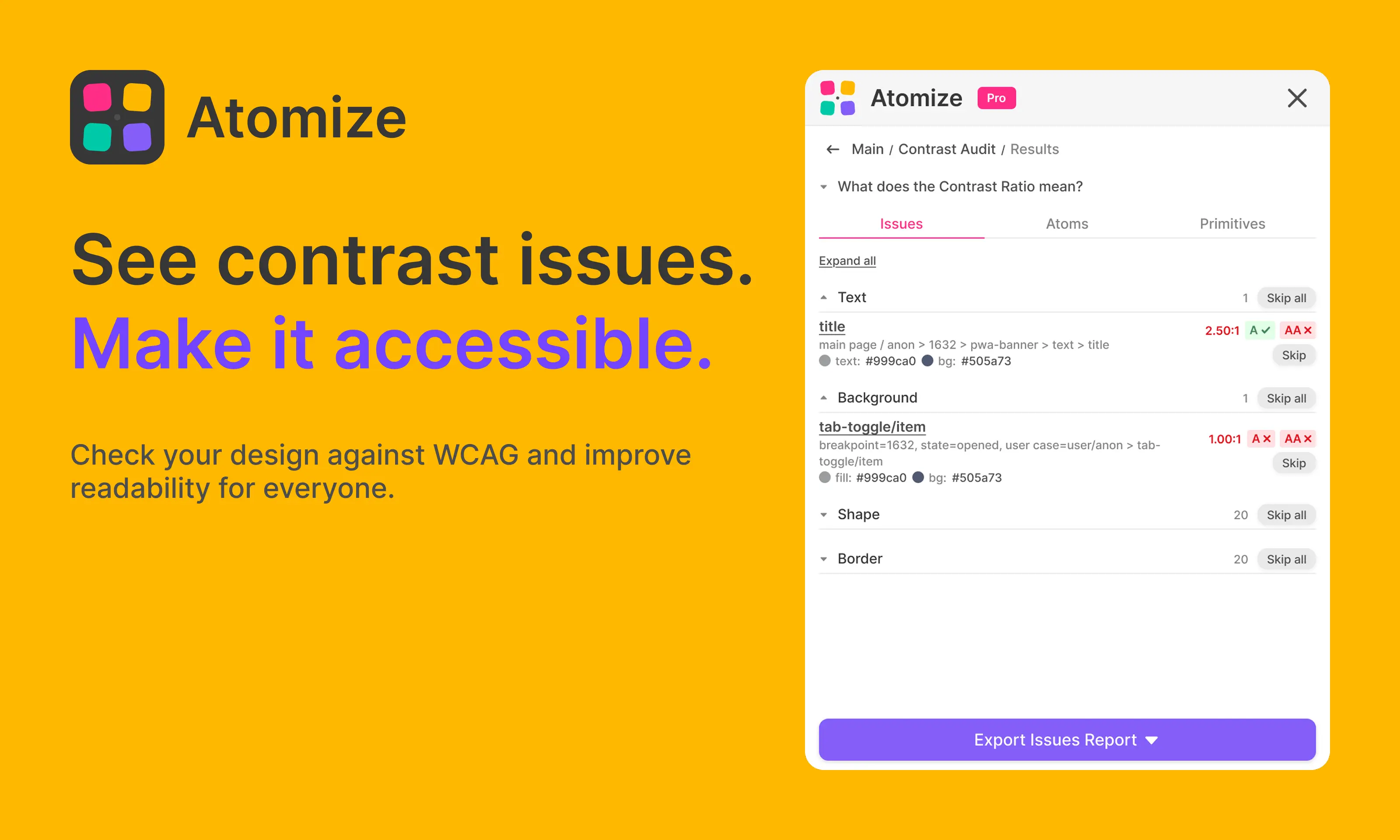
Contrast Audit is Atomize's bulk WCAG scanner for Figma. It composites stacked fills (including semi-transparent layers), compares foreground text and UI colors against effective backgrounds, and groups failures by the design token causing them — so one Variables fix propagates across every component. Atomize uses the W3C relative-luminance formula with separate thresholds for body text, large text, and non-text UI.
In short
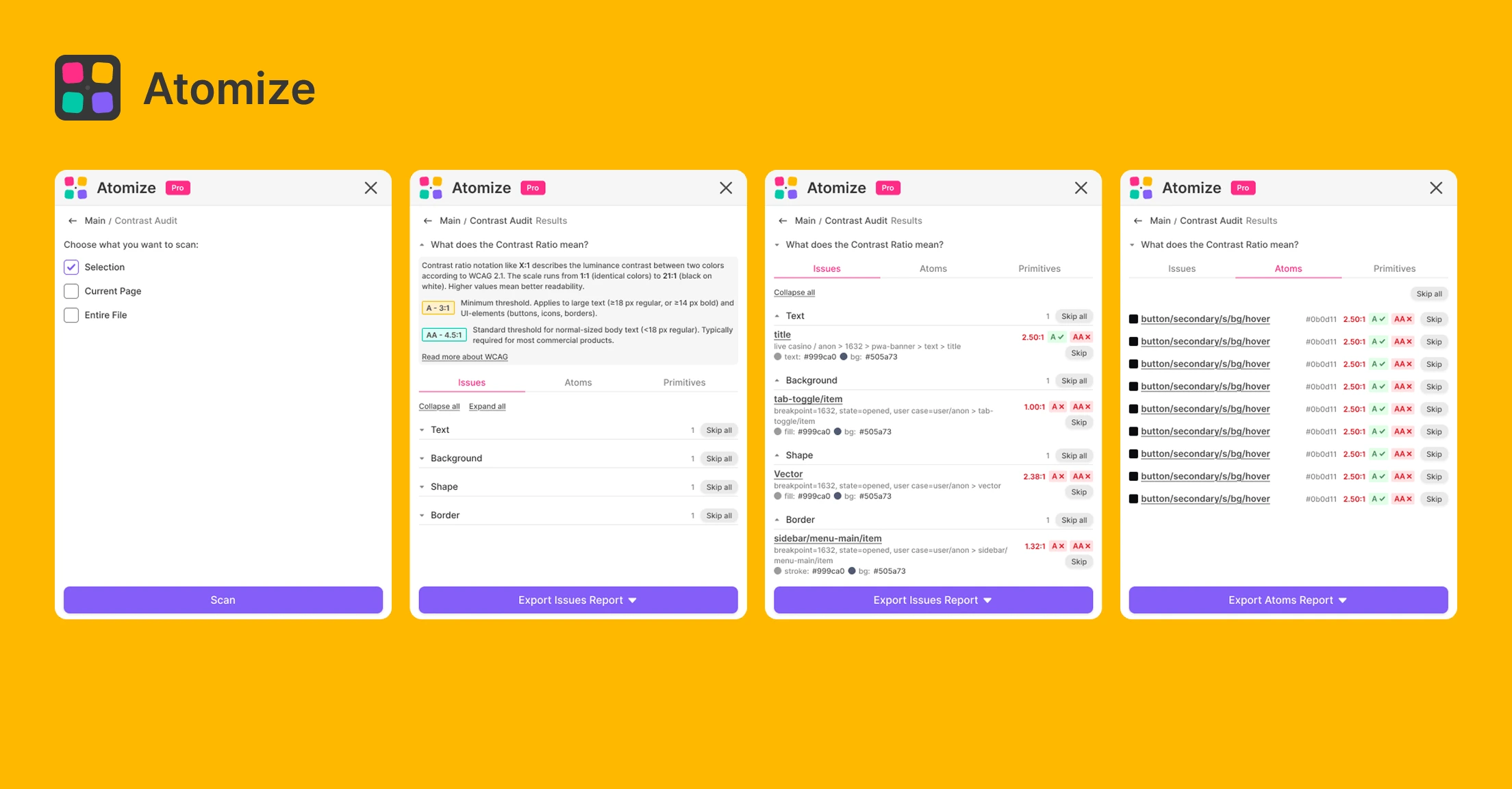
- Scopes: Selection or Current Page (deep file-wide walk in UI is page-scoped).
- Thresholds: 4.5:1 body text AA, 3:1 large text and non-text UI (icons, borders, focus rings).
- Composite alpha along the parent chain — 50% red on white is evaluated as rendered pink.
- Three result views: Issues (by element type), Atoms, Primitives (token-centric).
- Optional PNG sampling for image backgrounds; export per tab to JSON or XLSX.
Who this is for
Accessibility-minded designers and design-system maintainers use Contrast Audit before library releases — especially when dark mode semantic aliases resolve to different primitives. Token owners fix contrast at the variable level instead of repainting components one by one. Run Find Untokenized Values first so every color in the report maps to a token you can edit. Full WCAG theory and triage patterns live in the Figma contrast audit guide.
How it works in Atomize
- Dashboard → Contrast Audit.
- Pick Selection or Current Page.
- Click Scan — progress shows nodes processed.
- Open Issues for grouped failures (Text, Background, Shape, Border) with ratio badges.
- Switch to Atoms or Primitives when you think in token names.
- Click a row to select the layer; skip false positives per tab.
- Export the active tab (Issues, Atoms, or Primitives) as JSON or XLSX.
Why composited backgrounds matter
Spot-checkers compare text fill hex to a guessed background. Real Figma UI stacks frames, translucent scrims, and nested auto-layout groups. Contrast Audit walks the parent chain, composites alpha, and flags image backgrounds when raster fills appear — with a badge so you know manual review is required. That is why token-level grouping matters: a failing color/text/secondary alias in dark mode often traces to one primitive pair, not fifty mis-tinted buttons.
Token-first accessibility
Fixing contrast on individual layers does not scale. Contrast Audit links failures to variable names and collection paths (primitives vs semantic atoms). After rebinding or retuning aliases in the Variables panel, rescan the page to confirm ratios. Pair with Figma Variables dark mode setup so both modes stay above threshold.
FAQ
It automates color contrast math across hundreds of layers — the expensive part of WCAG color review in Figma. You still validate focus order, semantics, and content in your usual QA process.
Page-scoped scans keep feedback fast and actionable while you iterate. Run per page before publish, or scan selection when auditing a single component set.
Rows show both reference levels; inclusion in the report uses the correct WCAG threshold for that element type (4.5:1 for normal text, 3:1 for large text and UI shapes).
Deep-dive guide
For workflows, examples, and design-system context, read the full blog article on this topic.
Read the blog guide →Other features
-
Find Untokenized Values in Figma
Scan every layer for hardcoded values that bypass Figma Variables — grouped by property type with export-ready reports.
Read guide → -
Font Scanner for Figma
See every font family, weight, and size in your file — select all matching text layers in one click.
Read guide → -
Find & Replace Variables in Figma
Replace one variable with another across every alias in your token library — preview affected variables, select what to update, confirm in one flow.
Read guide → -
Atomize — 11 Languages
Atomize speaks your language — 11 UI languages so every designer on your team works in their native interface.
Read guide →