Coverage Audit in Figma measures what share of checked properties are bound to Variables; Find Untokenized Values lists every hardcoded literal still on the canvas. They answer different questions, read the same boundVariables API, and run in this order: coverage score first, literal cleanup second, Contrast Audit third on the same scope. For the conceptual foundation of design tokens, see the broader definition and evolution from proprietary formats to the DTCG standard.
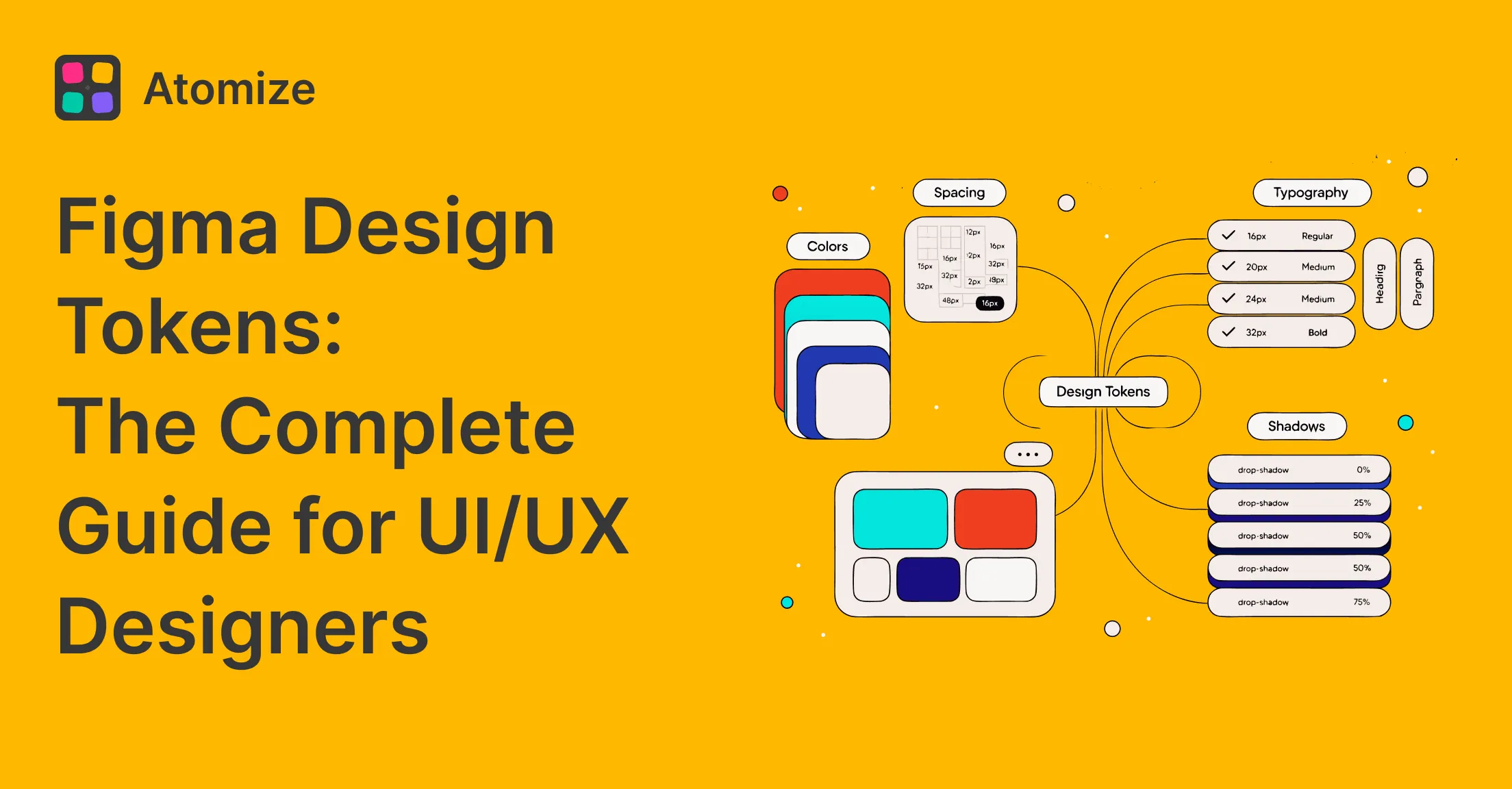
Related workflows: Figma Design Tokens: The Complete Guide for primitives and semantic layers, Find Untokenized Values in Figma for the full scanner with export and suggested tokens, Contrast Audit for WCAG for accessibility checks after binding cleanup, and DTCG specification for token export standards.
In short
- Coverage Audit = binding percentage on fills, opacity, padding, and gap (Total / Bound / Unbound).
- Find Untokenized Values = every hardcoded literal with layer path, raw value, and suggested token across thirteen categories.
- Run order: Coverage first, Untokenized second, Contrast Audit third on the same scope.
How to find hardcoded values in Figma
Hardcoded values are literals in the inspector (hex, px, opacity) with no Variable alias on that property in boundVariables. At file scale, manual inspection does not finish; teams run a dedicated scan on Selection, Page, or File scope. The full workflow - thirteen categories, suggested tokens, export, and rebinding - is in Find Untokenized Values in Figma. Use Coverage Audit first when you also need a single binding percentage to track design token adoption before that cleanup pass.
Design token governance is more than publishing a variable library - it is tracking binding health over time, which is the operational side of a design system where tokens are the shared contract between design and code. After token migration (renaming collections, splitting primitives from semantics, or absorbing a legacy file), a coverage percentage plus an untokenized backlog are the usual checks before you treat the file as release-ready for design ops and engineering.
Two audits, two questions
Token coverage (Coverage Audit) asks: “Is this property wired to a Variable at all?” It increments total for each supported property it inspects and bound only when Figma reports a variable alias on that slot. Untokenized asks: “Is this value still a literal on the canvas?” It reads the same boundVariables API but reports the actual raw value, groups findings by design category (Fill, Padding, Font size), and can propose color/primary/default when your library already defines that hex. Neither tool replaces the other: Coverage is the pulse check; Untokenized is the remediation list.
Coverage Audit vs Find Untokenized Values
| Question | Coverage Audit | Find Untokenized Values |
|---|---|---|
| Primary signal | Percent of properties with any Variable binding | List of literals still not bound |
| Output shape | Total, Bound, Unbound + bar chart | Grouped rows with layer path, raw value, suggested token |
| Property breadth | Fills, opacity, padding sides, gap (layout spacing) | Thirteen categories including stroke, radius, typography, effects |
| Token suggestions | No | Yes - maps hex and numbers to local variables |
| Export | No | JSON or XLSX report |
| Best first pass | Yes - see binding rate in seconds | Second - fix and track every category |
When should I use Coverage Audit?
- Before a milestone or design review when stakeholders need one binding percentage for the screen or page.
- On Selection while you refactor a single component and want a quick before/after score.
- Right after token migration or a library merge - to see whether rebinding stuck on fills, padding, and gap.
- When design token adoption metrics matter more than a line-by-line remediation list.
When should I use Find Untokenized Values?
- Before library publish or developer handoff when you need every literal listed with path and raw value.
- When Coverage looks healthy but stroke, radius, typography, or effects were never in the coverage walk.
- When design ops needs JSON or XLSX to track fixes outside Figma.
- After Coverage shows a low bound percent and you need the category-by-category fix list.
What Coverage Audit checks
Coverage Audit walks the node tree for the current Selection or Page scope and counts binding state per Figma property key. For each node it inspects visible fills, partial opacity (between 0 and 1), all four padding sides when layout padding exists, and itemSpacing when auto-layout gap applies. If boundVariables contains an alias for that key, the property counts as bound; otherwise it lands in Unbound grouped under names like fills, paddingTop, or itemSpacing. The report does not compare pixel values to your scale - only whether a Variable link exists, which matches how Figma documents variable binding.
Use Coverage when you need a single number before design review: “Are we at 40% or 90% bound on this screen?” A low percentage usually means the frame predates your variable collections or a branch never got a rebinding pass - not that individual colors are wrong.
Where to open each audit in Atomize
Install Atomize from the Figma Community, then open the plugin in your file. Find Untokenized Values is on the Atomize home dashboard - that is the entry point for the thirteen-category scan, export, and suggested tokens. Coverage Audit runs in the same plugin under the Coverage Audit panel (listed in Atomize Free features as coverage audit). If your build shows a Coverage Audit card on the dashboard, use it; otherwise open Coverage Audit from the plugin navigation provided in your version. Both tools share Selection and Page scope controls before you tap Scan.
What Find Untokenized Values checks
Find Untokenized Values is the deep audit described in our full scanner guide. It treats a property as tokenized only when boundVariables (or paint-level bindings) include a VARIABLE_ALIAS. Everything else is a finding, even when the literal matches a palette step you already published - #2563eb beside an existing color/blue/600 variable still appears until someone binds it. The scanner loads local collections, resolves alias chains, and fills suggested token when a literal matches a color hex or numeric step in the file.
On mature files, padding and gap categories often produce more rows than color because pre-token navigation and forms used correct-looking numbers without bindings. Visual QA rarely catches that; the scanner does. Running an untokenized values Figma scan surfaces gaps that visual review alone cannot catch, giving teams a complete remediation backlog across all thirteen categories.
Thirteen property categories - which audit sees them
The table below mirrors the category list in the Untokenized scanner article. Coverage Audit covers the highest-volume layout and fill bindings; Untokenized covers the full surface area teams need before export and dark mode.
Property categories and audit coverage
| Category | Figma properties | Coverage Audit | Find Untokenized |
|---|---|---|---|
| Fill (color) | Solid and gradient paints | Yes (fills) | Yes |
| Stroke (color) | Stroke paint | No | Yes |
| Stroke (weight) | strokeWeight and per-side weights | No | Yes |
| Corner radius | cornerRadius and per-corner radii | No | Yes |
| Padding | paddingTop, Right, Bottom, Left | Yes | Yes |
| Gap | itemSpacing (auto-layout) | Yes | Yes |
| Margin | counterAxisSpacing | No | Yes |
| Opacity | opacity | Yes (partial opacity only) | Yes |
| Effects | Drop shadow, inner shadow, blurs | No | Yes |
| Font family | fontFamily / fontName | No | Yes |
| Font size | fontSize | No | Yes |
| Font weight | fontStyle / fontWeight | No | Yes |
| Line height | lineHeight | No | Yes |
Recommended order: coverage, untokenized, contrast
- Run Coverage Audit on Selection while fixing one component, or on Page before a milestone - note the bound percentage and which property keys dominate Unbound.
- Run Find Untokenized Values on the same scope - work category by category, use suggested tokens where they match your naming, Skip intentional marketing one-offs, export JSON or XLSX if design ops tracks tickets outside Figma.
- Rescan Untokenized until critical groups are empty on that scope, then run Contrast Audit on the same selection or page so token-bound text and fills still meet WCAG 2.1 contrast targets.
- Repeat per screen on large files instead of one File pass that mixes exploration frames with production UI.
Contrast Audit runs last because binding cleanup can change which color variables apply to text and backgrounds; checking contrast on literals you are about to replace wastes a review cycle.
A typical report after the first Untokenized scan
After the first Page scan on a legacy dashboard, groups often stack like this - illustrative counts from production-style files, not a guarantee for yours:
- Padding (24 findings) -
Main > Sidebar > Nav itemwith16px/12pxliterals on rows that visually match your spacing scale. - Gap (11) - auto-layout stacks still using raw
8and4instead ofgap/2andgap/1. - Fill (9) - marketing blues and legacy grays not aliased despite matching primitives in the library.
- Corner radius (7) - cards at
8pxwith nocornerRadiusbinding. - Font size (5) - body text at
14pxon components built before type variables existed. - Opacity (2) - overlays at
40%without a FLOAT variable.
Coverage on the same page might show 62% bound with most Unbound under paddingTop and fills - the same nodes, but Coverage does not list hex values or suggest space/4. That is why teams run Coverage first for the score, then Untokenized for the punch list.
/* Same button - Coverage flags unbound keys */
fills: no VARIABLE_ALIAS          → Unbound (Coverage)
paddingTop: no alias              → Unbound (Coverage)

/* Untokenized adds the literal + hint */
fill = #0d99ff                   → suggest color/primary/default
padding-top = 16px               → suggest space/4
Common mix-ups we hear from teams
- Treating a high Coverage percentage as “done” while stroke, radius, and type categories were never in the Coverage walk - run Untokenized before release.
- Assuming a bound fill is on the correct semantic token - Coverage only checks that some Variable is linked, not the name your token guide expects.
- Running Contrast before rebinding - failures shift after you bind to the intended role tokens.
- Using File scope on active work-in-progress pages - Selection or Page keeps the report actionable.
Related reading
- Find Untokenized Values in Figma - full scanner workflow, scopes, export, and fixes
- Figma Contrast Audit for WCAG - token pair checks after binding cleanup
- Figma Design Tokens: The Complete Guide - primitives, semantics, and modes
Final verdict - Coverage vs Untokenized
Coverage Audit tells you how much of the checked surface is linked to Variables; Find Untokenized Values tells you exactly which literals to fix and often which token to bind. Run Coverage first for the percentage, Untokenized second for the work list, Contrast third for accessibility on the tokens you kept. Together they turn “we use variables somewhere” into a governable file - without duplicating the long Untokenized guide on every audit question.