Figma MCP is the built-in Dev Mode server that exposes your file as structured tokens and layout - not screenshots - to Claude Code, Cursor, Windsurf, and other MCP clients at http://127.0.0.1:3845/mcp. It replaces screenshot-based handoff with live token names, variable definitions, and component maps that the AI reads directly from your file. Whether you need to understand what is Figma MCP, learn how to setup Figma MCP, or master how to use Figma MCP in your daily workflow, this guide covers the full process: setup in 60 seconds, token binding for MCP-friendly output, IDE integration, comparison with Framelink and Anima, and file hygiene habits that determine output quality.
Related workflows: Figma design tokens guide for Variables and DTCG export, token workflow plugins for pipeline setup, and Claude Design for AI canvas ideation before MCP handoff.
In short
- Enable MCP in Figma desktop Dev Mode once; the local server starts with the file.
- Point your IDE MCP config at
http://127.0.0.1:3845/mcp- no API keys for the local socket. - Four tools:
get_code,get_image,get_variable_defs,get_code_connect_map. - Bind Variables before MCP reads - run Find Untokenized Values first.
- Pair with Claude Design for ideation and AI skills for designers for repeatable prompts.
Figma’s MCP sits on the Model Context Protocol, an open standard Anthropic published in November 2024. This guide covers setup, file structure for best results, and alternatives like Framelink, Anima, and Builder.io Visual Copilot.
What MCP actually is
MCP is the universal plug standard that lets any AI client talk to any external tool without custom integrations. Before it existed, every design-to-code tool had to negotiate its own data pipeline with every LLM - a combinatorial mess that produced inconsistent results and brittle connectors. Anthropic published the Model Context Protocol specification on November 25, 2024; it is now a community standard with SDKs in Python, TypeScript, C#, and Java. Know this: MCP is what allows Figma to expose your token library as live, queryable data rather than a static export.
We built Atomize’s export pipeline on top of Figma’s Variables REST API before MCP existed - every token read required a manual API call, token type inference from the variable name, and a custom transformer to produce structured output. The Figma MCP Dev Mode server replaces all of that: a running Figma desktop app exposes the same data through a local socket that any MCP-compatible client can read without authentication or custom parsing. The shift from screenshot-based handoff to structured token output is the most significant change to the design-to-code pipeline since Variables shipped.
Why a context protocol matters for design
Designers have lived with the consequences of context loss for years. A Figma frame goes to a developer as a PNG plus a Notion link, the developer paste it into an LLM, and the model returns CSS that uses literal hex values, off-by-2px paddings, and component names that nobody on the team uses. The problem was never the model - it was that the model could not see the design system, only an image of one frame. MCP closes that gap by giving the AI a structured channel to the file: variable names, component IDs, layer hierarchy, and references to your real codebase, all without lossy intermediate steps.
How the Figma Dev Mode MCP server works
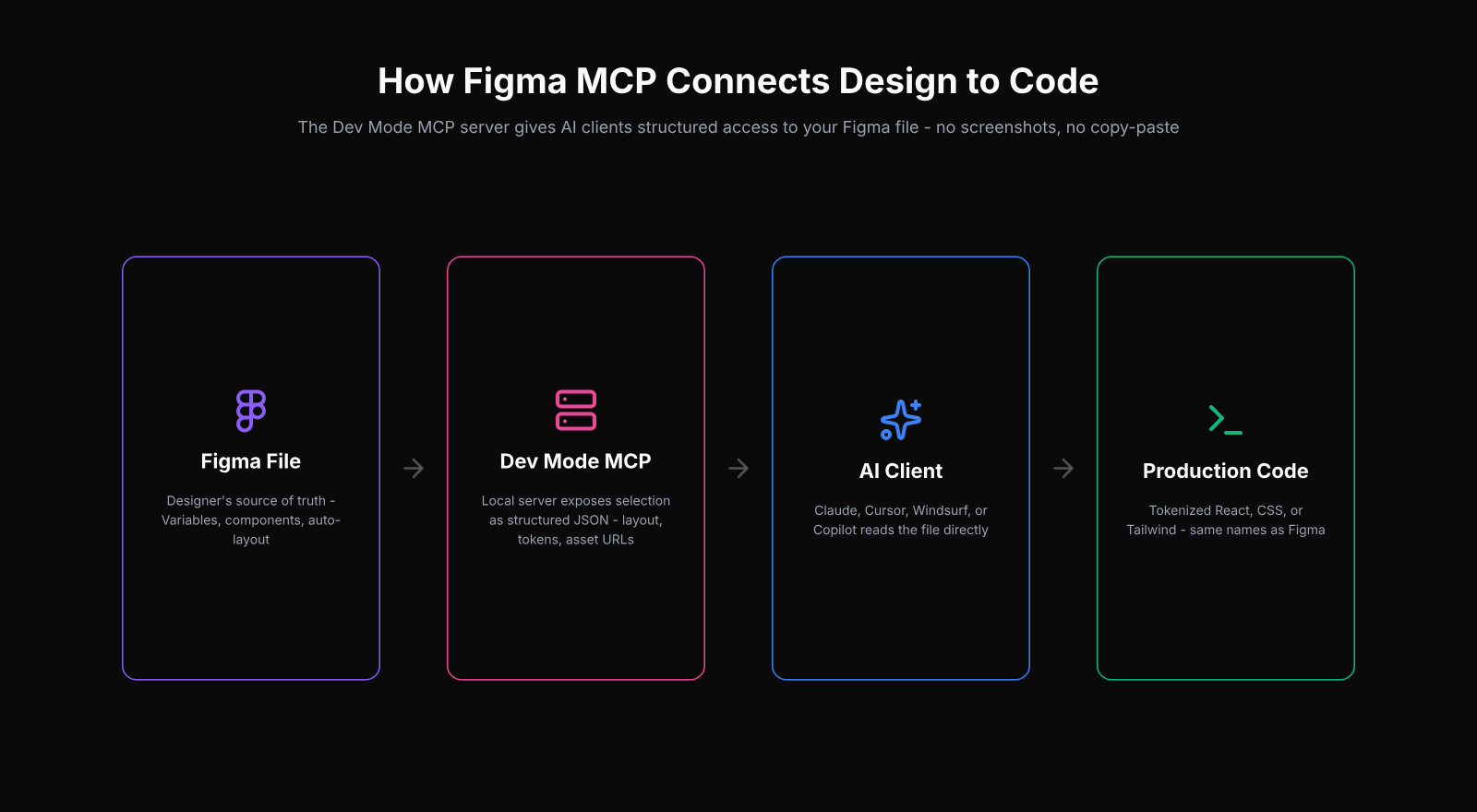
If you are wondering what is Figma MCP server: it is the local JSON-RPC endpoint that ships inside the Figma desktop app, exposing your design file as structured data that any MCP-compatible AI client can query. Figma’s Dev Mode MCP server works by running that endpoint inside the desktop app, serving AI clients one selection at a time. That scope-by-selection design is intentional: it keeps each response well under the context limit and forces the model to reason about the right piece of the design rather than hallucinating from a partial dump of the whole file. When Vitalina was building Atomize’s export pipeline, pre-MCP reads required separate REST calls, manual token-type inference, and custom transformers; the local server collapses all three steps into a single structured response. Remember: the server is only as useful as the selection you send it - one focused frame beats a full page every time.
The four tools the server exposes
Every Figma MCP call resolves to one of four tools. Knowing which tool returns what makes it easier to write good prompts and to debug when the output drifts from the design.
What each Figma Dev Mode MCP tool returns
| Tool | What it returns | When the AI calls it |
|---|---|---|
| get_code | React + Tailwind code for the selected frame, retargetable to other frameworks | Generating a component scaffold from a frame |
| get_image | Rendered PNG of the selection at the chosen scale | Visual reference and pixel-perfect verification loops |
| get_variable_defs | Variables and styles used in the selection - color, spacing, typography | Keeping generated code bound to your tokens |
| get_code_connect_map | Map of nodeId → codeConnectSrc paths in your repo | Pointing the model at your real component implementations |
What context actually looks like
Wiring a Figma MCP server into an IDE is a tiny config change. The example below is the entry an IDE like Claude Code or Cursor adds to its MCP configuration; once Figma’s desktop app is running with Dev Mode enabled, that single line is enough for the client to discover the four tools and start invoking them. Connecting Figma MCP to Claude Code, Cursor, or Windsurf all use the same one-line config entry — paste the URL into .mcp.json and restart. Claude Code (desktop app) and Cursor both pick it up through their respective MCP settings panels.
// .mcp.json - Claude Code, Cursor, Windsurf, or VS Code Copilot
{
  "mcpServers": {
    "figma-dev-mode": {
      "url": "http://127.0.0.1:3845/mcp"
    }
  }
}
How to setup Figma MCP in 60 seconds
Enabling Figma MCP takes under a minute if you already have a Pro seat and the desktop app installed. The server ships inside Figma - there is nothing to download separately - and it activates with a single toggle in the Dev Mode Inspect panel. Atomize’s first working MCP call happened within two minutes of flipping that toggle; the main friction was restarting the IDE to pick up the new endpoint. The prerequisite that catches people: the local server only runs in the desktop app, so browser-only Figma users need to install the desktop app first before any of the steps below will work.
- Open the Figma desktop app and load any Design file you have edit access to.
- Switch to Dev Mode using the toggle in the top-right of the toolbar.
- In the Inspect panel, find the MCP section and turn on
Enable desktop MCP server. - Add the
http://127.0.0.1:3845/mcpendpoint to your IDE’s MCP config and restart the IDE.
Native client support covers VS Code with GitHub Copilot, Cursor, Windsurf, Claude Code, and Zed. How to use Figma with VS Code is straightforward: enable the MCP server in Figma, add the endpoint to your VS Code MCP config, and Copilot reads your designs as structured tokens. The official Figma docs maintain the current list and a known-issues page for client-specific quirks. Plan-wise, is Figma MCP free? Not for production work: the server requires a Dev or Full seat on a Professional, Organization, or Enterprise plan; Starter accounts are limited to roughly six tool calls per month, which is enough to try the feature but not enough to ship.
How designers benefit in practice
MCP’s real benefit for designers is that the AI stops inventing your design system and starts reading it. Most teams find that generated code without MCP looks plausible but is wrong in ways that are slow to catch - hardcoded hex values, off-spec padding, lookalike components that drift the moment the real component is updated. With MCP active, Vitalina observed that first-pass scaffolds from Atomize’s tokenized files needed almost no spacing corrections, because the model was referencing spacing/4 rather than guessing 16px. The three shifts below show up consistently in the first week of adoption.
Tokens stay tokens
Without MCP, an AI assistant looking at a screenshot picks colors with an eyedropper and pastes literal hex values into the output - the model has no concept of design tokens as a shared naming layer between design and code. With get_variable_defs available, the model sees that the surface color is surface/elevated aliased to gray/950, and it writes var(--surface-elevated) or the equivalent token reference - the same pattern that the W3C Design Tokens Community Group standardizes so tools and codebases exchange token files without custom parsers. The same shift happens for spacing, typography, and radius - the generated code uses your token names, so a future system change still propagates. Pair this with a healthy primitive and semantic token architecture and the AI’s output starts looking like code your senior frontend engineer would have written.
Components map to real code components
get_code_connect_map is the tool that earns its weight on a mature codebase. When a Figma component is mapped to its real React or Vue counterpart through Figma Code Connect, the AI no longer rebuilds your Button from scratch on every frame - it imports the component you already wrote, with the right props inferred from the variant. Without Code Connect, the model falls back to building lookalike components, which is the failure mode every senior engineer complains about. Code Connect requires Organization or Enterprise; this is the part of the system that is paywalled, and it is also the part that gives the largest accuracy jump.
Less back-and-forth at handoff
Designers spend less time in the Slack thread that starts with “the padding is wrong” because the AI is working from the same source the designer is editing. Figma AI handoff means the classic translation losses - 16px becoming 13px, text/heading/lg becoming a literal font-size: 24px, or a card built from primitives instead of the existing card component - all shrink. Some drift remains, especially on layouts where auto-layout edges meet absolute positioning, but the baseline quality is high enough that the conversation moves from “this is wrong” to “can you adjust this one detail.”
Figma MCP vs other design-to-code tools
In the figma to code landscape, Figma MCP is the right choice when you want a general-purpose AI to reason about a design inside your IDE using your codebase as context - it is not the right choice when you want a turnkey export pipeline. The design-to-code space has grown fast since 2024, and each tool solves a different bottleneck: fine-tuned models, component-mapping pipelines, or raw structured context. Atomize evaluated Figma MCP, Framelink, Anima, and Visual Copilot across real client files; the differentiator that mattered most was whether the tool could quote token names from the live file rather than outputting literals. Use the table below as a starting orientation, not a definitive benchmark.
Figma MCP vs other Figma-to-code tools
| Tool | Approach | Token-aware | Component-aware | Where it lives |
|---|---|---|---|---|
| Figma Dev Mode MCP | Local MCP server feeds selection to AI client | Yes | With Code Connect | Desktop app + IDE |
| Framelink MCP (community) | MCP server over Figma REST API | Partial | No | IDE only |
| Anima | Figma plugin + VS Code Frontier extension | Partial | Yes (Frontier) | Plugin + IDE |
| Locofy Lightning | Plugin, fine-tuned model export | Partial | Partial | Plugin + web |
| Builder.io Visual Copilot | Multi-stage AI pipeline plugin | Yes | Yes | Plugin + cloud |
When Atomize evaluated Framelink MCP and the official Figma Dev Mode MCP server against the same frame from our tokenized library, the difference was direct: Framelink returned resolved hex values - #1A1A27 for a surface fill - while the official server returned the surface/elevated Variable name alongside the resolved color. That distinction determines whether the AI writes background-color: #1A1A27 or background-color: var(--surface-elevated). For a design system where CSS custom properties are the production interface, the official server’s Variable-name output is what makes generated code actually maintainable.
If you want raw context fed to a general-purpose model in your IDE, Figma’s official server or the community Framelink MCP is the right shape. If you prefer an end-to-end pipeline that maps designs to your codebase using a vendor-tuned model, Anima or Visual Copilot are stronger. There is no universal answer; the deciding question is whether you want the AI to reason inside your IDE with your codebase context, or whether you want a turnkey export.
Limitations to know before you ship
- The official server is in active development; expect occasional protocol changes and document any custom integrations defensively.
- Responses are capped at roughly 20 KB per call - large frames need to be broken down into smaller selections before the AI can reason about them.
- Code Connect is the unlock for component mapping, and it requires Organization or Enterprise plus a Dev seat; Pro accounts get tokens but not real-component imports.
- The remote/hosted MCP variant does not work behind every enterprise auth setup; teams on AWS Bedrock or custom proxies have hit known walls.
- Selection is the unit of work: the server is not a way to dump an entire file into a model, and prompting it that way wastes calls and produces shallow results.
How to design for MCP-friendly output
MCP-friendly output starts with the file, not the prompt - the server can only return what is already bound and named correctly. Designers who obsess over prompt engineering and ignore token coverage consistently get worse results than designers who tokenize thoroughly and write minimal prompts. When Atomize audited client files before MCP onboarding, the ones with more than 80% variable binding coverage produced first-pass scaffolds that needed only minor prop adjustments; files under 40% coverage produced literal-heavy noise regardless of how the prompt was written. The checklist below covers the highest-leverage file hygiene habits, most of which overlap with design-system best practices you should already have in place.
- Bind every fill, stroke, padding, radius, and text metric to a Variable - the AI cannot quote a token that does not exist. Run Find Untokenized Values before sending a frame to MCP.
- Use real components, not detached groups -
get_code_connect_maponly matches what is exposed as a component in the library. - Annotate non-obvious behavior in Dev Mode - the model reads annotations into context.
- Keep the selection focused - one frame at a time outperforms whole-page selections, both for accuracy and for the 20 KB response cap.
- Audit accessibility before code generation, not after - run Contrast Audit so the design the AI is reading is already AA-clean.
Where MCP fits with the rest of your design system
MCP is the live channel into the file - it amplifies whatever system discipline is already there, good or bad. A design system without consistent token names, real components, or dark-mode parity will produce AI output that exposes every gap, just faster. Teams that get the most out of Figma MCP have already invested in design-to-code parity and a token export/Git plugin stack that feeds Style Dictionary or a DTCG-compliant build pipeline: the same token names exist in Figma and in the codebase, so the AI’s output drops in cleanly without a renaming pass. For token architecture patterns that survive toolchain swaps, Material Design 3 provides a production-validated reference scheme with source and blend color roles. Think of MCP as a quality multiplier, not a quality replacement - the Figma developer documentation covers the protocol details, but the leverage is upstream in your system.
Final verdict - Figma MCP
Figma MCP is the missing channel between design and code - not a magic export button, but a live, structured read of your file that a general-purpose AI can act on like a senior engineer. Output quality scales directly with file quality: Atomize’s fully-tokenized files with Code Connect configured produced production-grade scaffolds on the first pass; files with mixed binding and detached groups produced plausible-looking noise that needed heavier review. Design systems that were already clean got cleaner, faster; files that were a mess surfaced every gap. Treat MCP as a forcing function for system hygiene, and the design-to-code handoff becomes the smoothest part of your workflow.