Figma plugin
Find & Replace Variables in Figma
Replace one variable with another across every alias in your token library — preview affected variables, select what to update, confirm in one flow.
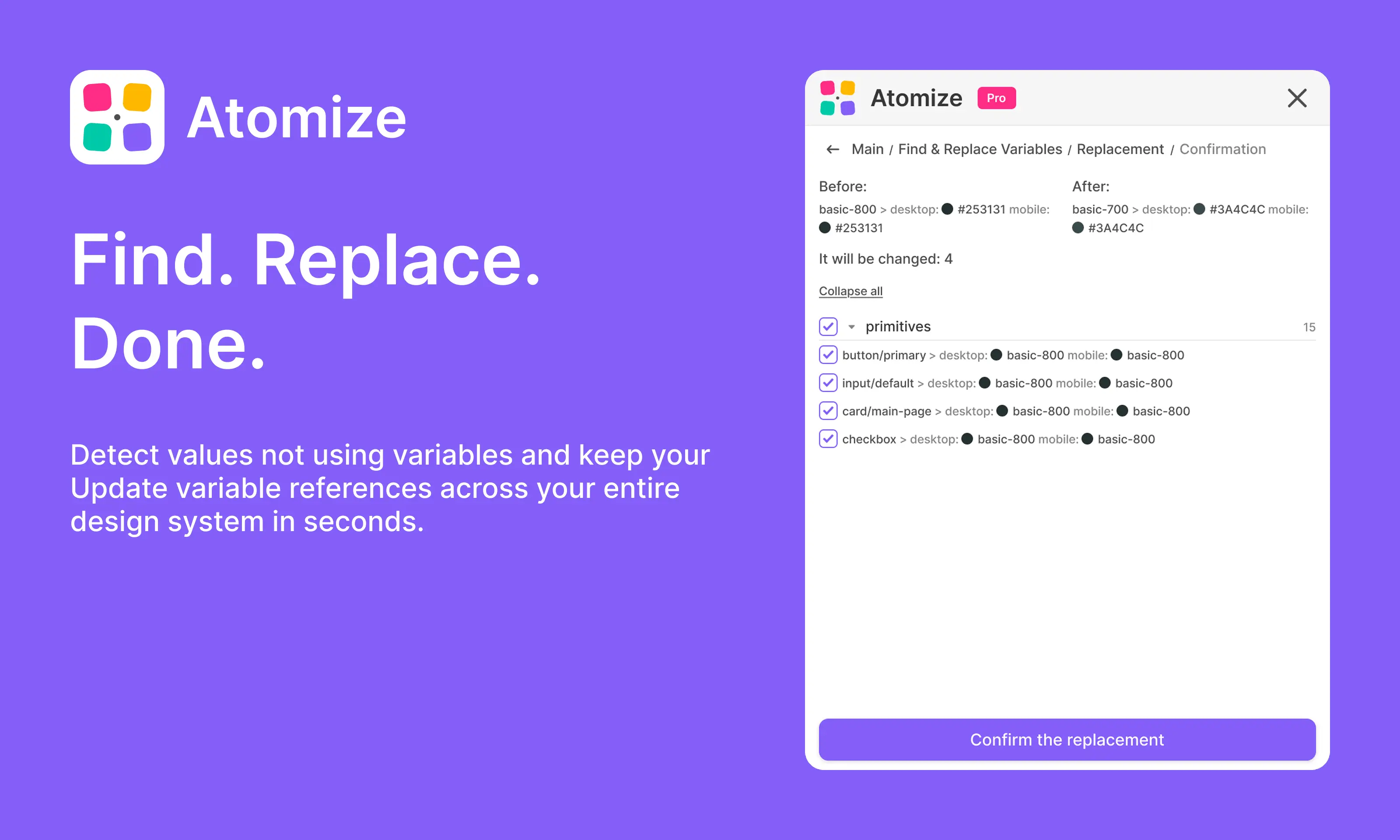
Find & Replace Variables is Atomize's refactor tool for Figma variable alias chains. Pick the variable you want to retire, choose a compatible replacement, and Atomize lists every other variable whose mode values reference it via alias — grouped by collection, with before/after previews. Confirm only the items you need; Atomize rewrites aliases in the Variables panel, not layer-by-layer on the canvas.
In short
- Two-step picker: select the source variable, then a replacement of the same type (COLOR, FLOAT, etc.).
- Finds references through Figma Variables API — alias links between variables, not a full canvas walk.
- Confirmation screen shows Before / After with mode values and a checklist of affected variables.
- Update all matches or clear checkboxes to skip specific tokens or whole collections.
- Collections appear in the same order as the Figma Variables panel.
- Fast on large libraries — analysis stays inside variable collections and modes.
Who this is for
Design system maintainers renaming primitives (basic-800 → basic-700), consolidating duplicate steps, or retargeting semantic tokens after a palette refresh. Token owners fixing alias drift without opening every collection manually. Teams preparing a library publish where one primitive swap must propagate through dozens of semantic variables. Pair with Find Untokenized Values to catch hardcoded literals that aliases never reached.
How it works in Atomize
- Open Atomize → Dashboard → Find & Replace Variables.
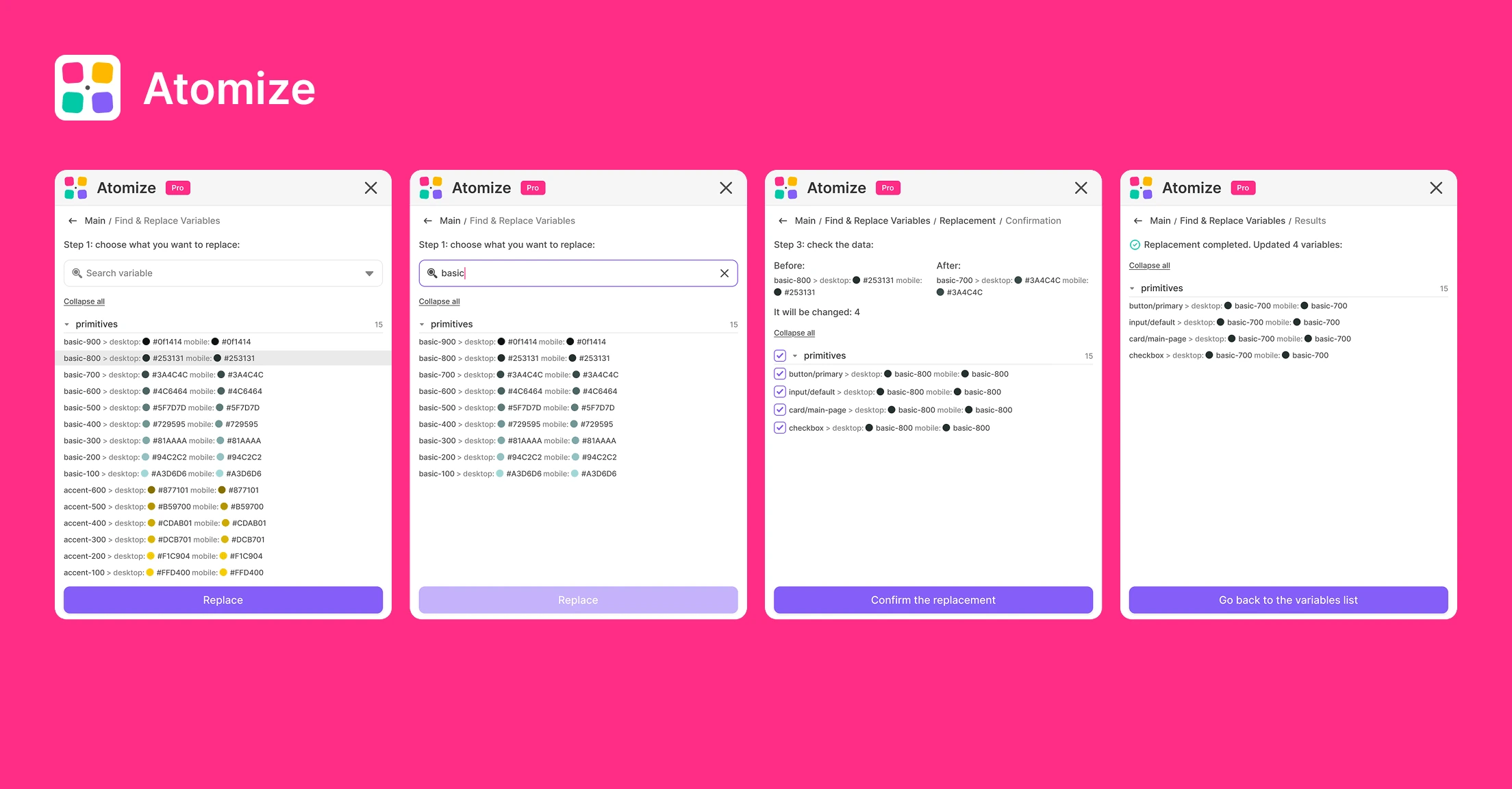
- Step 1 — browse collections, search, and select the variable you want to replace. Click Replace.
- Step 2 — pick a compatible replacement variable. Click Replace again.
- Review the confirmation list: Before / After summary and every variable that aliases the source.
- Uncheck any row or collection you want to skip.
- Click Confirm the replacement. Atomize updates alias values for the selected variables.
- Review the success summary grouped by collection, then return to the dashboard.
What gets updated
Atomize changes VARIABLE_ALIAS values on variable modes — the same bindings you see in the Figma Variables modal when one token references another. It does not rebind fills, strokes, or text on individual layers. If a component still shows the old color because it uses a hardcoded hex, run Find Untokenized Values after the alias swap. If contrast fails after a color token change, follow with Contrast Audit.
Recommended workflow
- Palette refresh: replace deprecated primitives, confirm semantic aliases, then audit untokenized fills.
- Library merge: map old primitive names to new ones before publishing the combined file.
- Dark mode prep: swap light-only aliases that should point at new neutral steps — then run contrast in both modes.
- Typography scale cleanup: replace FLOAT alias references when consolidating spacing or size tokens.
FAQ
No. It analyzes variable-to-variable alias references through the Figma Variables API. That keeps the tool fast on large files and focused on token structure — exactly what design system teams need when refactoring aliases.
No. Atomize only offers replacements with the same resolved type as the source, so alias swaps stay valid in Figma.
The confirmation step shows that the variable is not referenced via alias anywhere — there is nothing to change. You can pick a different source or bind the token on layers using Find Untokenized Values.
Other features
-
Find Untokenized Values in Figma
Scan every layer for hardcoded values that bypass Figma Variables — grouped by property type with export-ready reports.
Read guide → -
Contrast Audit for Figma
Bulk WCAG contrast check with real layered backgrounds — failures grouped by token, not just by layer.
Read guide → -
Font Scanner for Figma
See every font family, weight, and size in your file — select all matching text layers in one click.
Read guide → -
Atomize — 11 Languages
Atomize speaks your language — 11 UI languages so every designer on your team works in their native interface.
Read guide →