Find Untokenized Values in Figma: Token Coverage Audit
Atomize's Find Untokenized Values scanner audits Figma for hardcoded fills, padding, radius, and typography not bound to Variables - in one scan.
Run Atomize's Find Untokenized Values scanner on any Figma file, page, or selection and get an immediate list of every hardcoded color, spacing, radius, typography metric, stroke, opacity, and effect that is not bound to a Variable — with a suggested token for each finding and a one-click export to JSON or XLSX. Token drift accumulates on every long-running product because Variables are opt-in per property, per node, and visual review cannot catch a spacing value that is 2 px off the scale. A single scan walks thirteen property categories, verifies binding through boundVariables, groups findings by category, and gives you the layer path and raw value so cleanup maps directly to a ticketing flow.
What untokenized actually means
An untokenized value is a property that holds a raw literal instead of a reference to a Figma Variable, and that distinction has real system consequences. A fill of #0D99FF and a fill bound to color/primary/default look identical on the canvas; only the second one responds to mode switches, flows through your token export pipeline, and benefits from changes made at the primitive and semantic token layers. Figma exposes the binding state through each node's boundVariables property: if a fill or padding side has a VARIABLE_ALIAS entry pointing to a variable ID, it is tokenized — otherwise the value is a literal and the scanner flags it. That classification is binary and mechanical, which is why an automated scan is the only honest way to measure coverage across thousands of layers.
Figma exposes binding state through each node's boundVariables property. If a fill, stroke, padding side, or text metric has a VARIABLE_ALIAS entry pointing to a variable ID, it is tokenized. If it does not, the value lives only as a literal and the scanner flags it. That definition is mechanical, not subjective - which is why an automated scan is the only honest way to measure token coverage on a real file.
Token drift accumulates fastest in spacing and radius properties, not color — a finding from scanning real Figma files with Atomize's audit tooling. Color overrides get caught in visual review because a wrong red is obvious. A spacing value 2px off from the token scale passes unnoticed for months - until a developer compares the design spec to the codebase and finds the gap has grown into a multi-property mismatch. The components most likely to carry hardcoded spacing are ones built before the token system was established: navigation bars, modals, and form elements.
Tokenized vs untokenized - a quick example
The same button frame can look identical in two files and still be in completely different states. The first one is fully bound; the second has the same values, typed in by hand. Atomize ignores the first and reports every property on the second.
Why untokenized values appear in mature design systems
Token drift is a structural problem, not a discipline failure, and understanding its sources is the first step to controlling it. Variables in Figma are opt-in at the property level: every fill, every padding side, every radius must be bound individually, and no workflow forces that step at the moment of editing. In building Atomize's audit tooling across real design files, we consistently found drift entering through four vectors: exploration frames copied into the component page, one-off hotfix shades nobody upstreams, components built before their token definitions existed, and frames imported from unpublished or external libraries. Each incident is minor; the aggregate is the gap r/DesignSystems threads describe — tokens and variables that become "inconsistent or missing" once a product has run long enough. An automated scan turns that invisible aggregate into a numbered list.
Token drift is not a discipline problem you can lecture into compliance. Variables in Figma are an opt-in mechanism applied per-property, per-node, and the only way to know whether the opt-in actually happened across thousands of layers is to audit the file. Manual review never finishes; a scanner does it in seconds and never gets bored.
Of those four drift vectors, the one responsible for the highest finding counts in Atomize's production scans was not exploration frames or one-offs — it was navigation bars, modals, and form elements built before the token system was established. These components passed every visual review because their hardcoded values happened to match the current palette. They only appeared in scans because Atomize checks boundVariables rather than comparing pixel values. On mature products, pre-token components of this kind typically account for 60–70% of the total finding count on a first scan.
What the Atomize scanner checks
Atomize's scanner covers thirteen property categories in a single pass, closing the audit gaps that color-only tools leave open. Spacing and radius drift is harder to catch visually than color drift — a padding value 2 px off the scale passes design review for months — yet most community plugins stop at fills and strokes. Working through Atomize's beta with real files, Vitalina found that padding and gap categories routinely produced more findings than color on components built before the token system was established. The table below lists every category checked, the exact Figma properties inspected, and the Variable type the scanner matches against.
Coverage of the Find Untokenized Values scanner
| Category | Figma properties checked | Variable type matched |
|---|---|---|
| Fill (color) | Solid paint, gradient paint | COLOR |
| Stroke (color) | Stroke paint | COLOR |
| Stroke (weight) | strokeWeight, strokeTopWeight, strokeRightWeight, strokeBottomWeight, strokeLeftWeight | FLOAT |
| Corner radius | cornerRadius and per-corner radii | FLOAT |
| Padding | paddingTop, paddingRight, paddingBottom, paddingLeft | FLOAT |
| Gap | itemSpacing | FLOAT |
| Margin | counterAxisSpacing | FLOAT |
| Opacity | opacity | FLOAT |
| Effects | Drop shadow, inner shadow, layer blur, background blur | COLOR / FLOAT |
| Font family | fontFamily, fontName | STRING |
| Font size | fontSize | FLOAT |
| Font weight | fontStyle, fontWeight | STRING / FLOAT |
| Line height | lineHeight | FLOAT |
If you have built only a primitive layer so far - which is fine for early-stage systems - the scanner still finds matches when raw values line up with primitive variables. For a more complete result, pair this audit with a healthy primitive and semantic token structure so the suggestions point at the names you actually want components to bind to.
How the scan works under the hood
The scanner operates as a live tree walk over the Figma node graph, not a cached snapshot, which means it reflects the exact binding state of every node at the moment you run it. This matters because the Figma inspector shows computed values — it does not distinguish a bound Variable from a typed literal on sight. At each node the scanner reads both the property value and its boundVariables entry, marks the property tokenized only if a VARIABLE_ALIAS is present, and emits a finding otherwise; control is yielded every twenty nodes so a 50,000-layer file stays responsive throughout. Understanding this pipeline explains why results are deterministic and why a rescan after binding a value removes that finding immediately.
Walking the node tree
The walker is iterative and stack-based, which matters for large files where a recursive descent would blow the call stack. A small context object travels with each node so that downstream rules can know things like "we are inside an icon component" or "this branch is a banner" - useful for skipping irrelevant spacing checks on internal vector groups.
Verifying the binding via boundVariables
Each property has a known key in boundVariables. Fills use an array, padding uses one entry per side, line height has its own slot. The scanner reads the alias ID where the property points, and only when no alias is present does it record an untokenized item. Bound style references are treated as tokenized too, since the style itself can route through Variables.
Suggested tokens
Where possible, the report does not just say "this is hardcoded" - it names the token you probably wanted. Atomize loads every local variable collection, follows alias chains until it hits a literal, and builds two lookup maps: one from hex value to color variable, one from numeric value to numeric variable. When a hardcoded #030712 appears on a fill, the report suggests text/primary if your library defines it; when an 8 appears as a corner radius, it suggests radius/md. The suggestion is a hint, not an automatic action - you stay in control of what gets bound.
Three scan scopes - Selection, Page, File
Choosing the right scan scope is the single biggest factor in report signal-to-noise ratio. A File scan on an active working file will surface hundreds of in-progress findings alongside real drift, diluting the actionable items; a Selection scan on a finished component gives a clean, fast result. Vitalina settled on a three-scope rhythm during Atomize development: Selection as a continuous check while iterating, Page before design review handoffs, and File as a hard gate before each library publish. Match the scope to the moment in your workflow and the report stays useful rather than overwhelming.
Comparing the three scan scopes
| Scope | What it walks | Best for | Typical scan time |
|---|---|---|---|
| Selection | Only the nodes you have selected on the current page | Auditing one component before merging | Under 2 seconds |
| Page | All top-level nodes on the current page | Reviewing a screen, frame set, or working area | 1-10 seconds |
| File | All top-level nodes across all pages | Pre-release audits and design-system maintenance | 5-60 seconds depending on size |
On long-running files the File scope can produce thousands of findings on the first run. Treat that initial scan as a baseline and budget the cleanup across iterations rather than blocking work on a single hero ticket.
Reading the report and acting on it
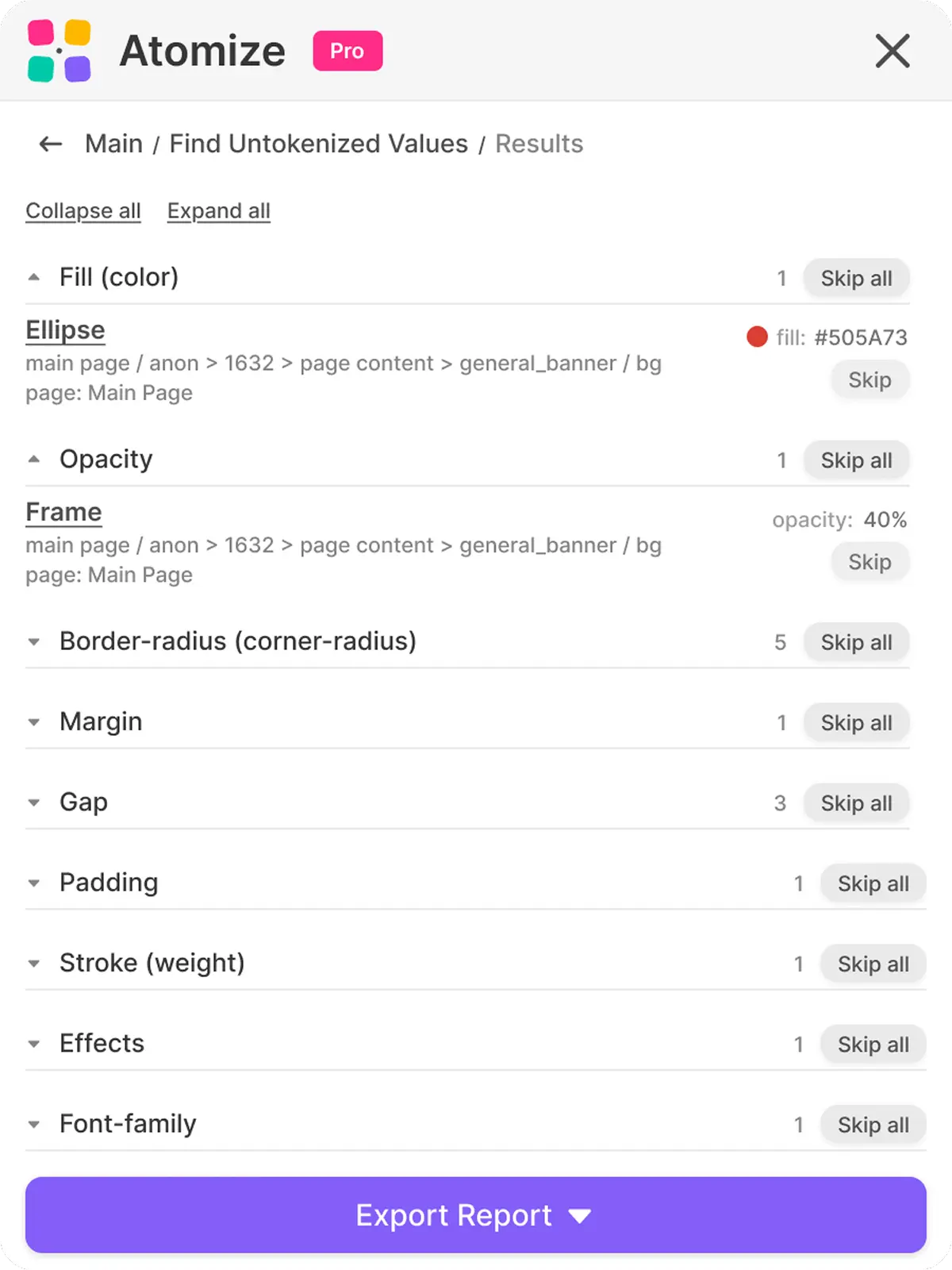
The report is designed to move you directly from finding to fix without leaving Figma. Each row shows the node name, its layer path, the page it lives on, the raw value, and a suggested token when one matched — clicking the node name selects it on the canvas and switches to the correct page automatically. That jump-to-node behavior matters on large files where a finding on page 7 would otherwise require manual hunting through the layer panel. Work through the report category by category, use Skip to acknowledge intentional one-offs, then rescan to confirm the binding landed correctly.
Per-item actions
- Click the node name to jump to it on the canvas
- Skip an item to remove it from the visible list without deleting the finding
- Restore a skipped item if you change your mind
- Collapse or expand entire groups when one category dominates the report
Skip and Restore
Skip is local to the current report - it does not edit the file or the variables. Use it to acknowledge "this one is intentionally raw" cases, like a marketing image with a brand-specific gradient, without losing track of them. Skip all and Restore all act on a whole group, which is the fastest way to triage when a single category dominates the noise.
Export to JSON or XLSX
When you want to track the cleanup outside Figma, export the report. JSON is convenient for tooling and dashboards; XLSX is friendlier for design-ops review with a non-technical stakeholder. The exported shape mirrors what the panel shows, with one row per finding.
Find Untokenized Values vs other Figma audit plugins
Atomize's scanner is the only tool in the current Figma community that covers all five audit dimensions — color, spacing, typography, effects, and token suggestions — with export in a single pass. Most alternatives handle fills and strokes well but stop there, leaving spacing and typography drift invisible unless you run a second plugin. Across the real-file audits Vitalina ran while building Atomize, the categories those tools skip — padding, gap, font size, line height — were precisely where the largest accumulations of drift lived on mature products. For native Figma Variables setups, the coverage gap makes a multi-tool workflow impractical; the table below maps what each plugin actually checks.
Atomize Find Untokenized Values vs other Figma audit plugins
| Plugin | Color audit | Spacing / radius audit | Typography audit | Effects audit | Token suggestions | Export |
|---|---|---|---|---|---|---|
| Atomize - Find Untokenized Values | Yes | Yes | Yes | Yes | Yes | JSON, XLSX |
| TokenOps | Yes | Yes | Partial | Partial | No | JSON |
| Relinky | Yes | Yes | Partial | No | Partial | No |
| Figxed Design System Audit | Yes | Yes | No | No | No | No |
| Design Token Checker | No | Yes | No | No | No | No |
If you live in Tokens Studio, the Tokens Studio Tree Inspector remains useful for the Tokens Studio docs workflow specifically. For native Figma Variables setups, Atomize covers more property categories in one pass and is the only one in the list that exports both JSON and XLSX. Pair it with a token export step from your Figma plugin workflow to close the loop into code.
Best practices for keeping coverage high
Token coverage only improves durably when the scan is part of the release ritual, not a one-off cleanup. A single audit surfaces the backlog; it does not stop the next round of drift, because the root cause — per-property opt-in without a gate — remains. Teams Vitalina observed that ran the scanner on a cadence caught regressions within the iteration cycle rather than at the post-release retrospective, which made each fix small and contextually obvious rather than large and archaeologically confusing. Pair regular scans with the broader design system best practices that keep the Variables structure healthy and the suggestions accurate.
Run it on every release branch
Before publishing a new library version, run a File-scope scan and resolve the high-impact categories first - colors, then padding and gap, then typography. Effects and opacity tend to produce the most intentional one-offs and are good candidates for a Skip pass rather than a fix pass.
Scope by component, not by page
When designers are mid-iteration, a Page scan can be too noisy because work-in-progress frames pollute the report. Selection scope on the active component gives you a faster feedback loop and respects the fact that exploration always involves some hardcoded values that will be normalized later.
Limitations to know before you scan
- Gradients are reported as
gradient-{type}rather than a hex, so the suggested-token match falls back to manual review for gradient fills. - Effects are checked at the style-binding level, not per shadow property, so a partially bound shadow may still be flagged as untokenized.
- Spacing inside groups named
iconorbanneris intentionally skipped to avoid false positives on internal vector layouts. - The scanner walks at most 100 levels deep - extreme nesting beyond that is rare in practice but worth knowing.
- Auto-binding from the report is not exposed in the current UI; the report points at suggestions, you do the bind in Figma's variable picker.
These constraints are Figma API boundaries, not gaps in the scanner's design, and knowing them prevents misreading the report. The Plugin API exposes some bindings as paint styles and others as direct Variable aliases, so a scanner that conflates the two would produce false negatives on style-bound nodes. Vitalina mapped each constraint to its API root during development so the coverage table above reflects what can be reliably detected today. The official Figma Variables documentation is the most reliable reference if you want to know exactly which property exposes which binding shape.
Where this fits in a token-driven workflow
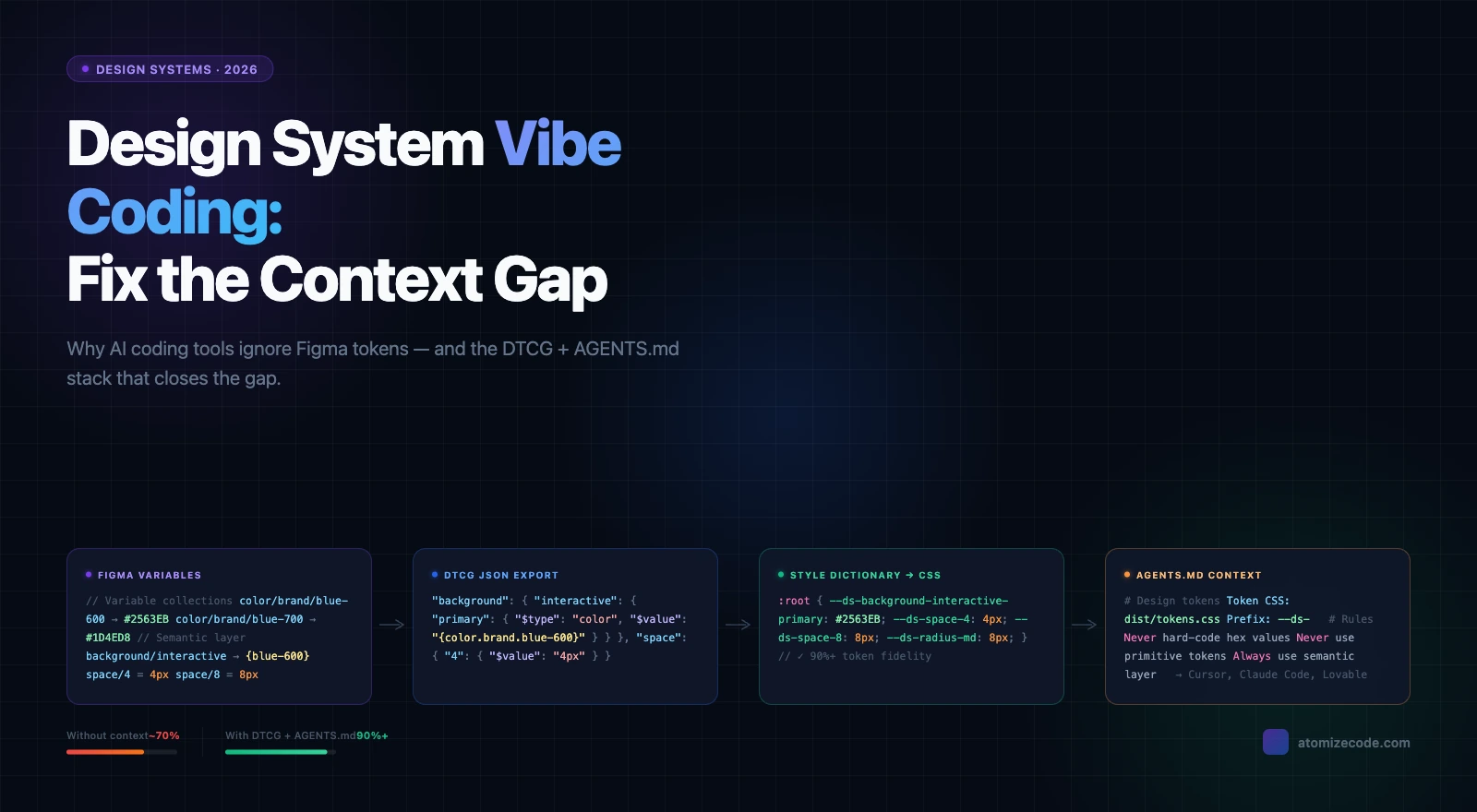
Find Untokenized Values closes the input side of the token pipeline — confirming that design values are actually bound before they reach code. Binding without exporting is still a gap, which is why teams who run the scanner consistently also need the output side: moving Variables to DTCG JSON, CSS custom properties, or TypeScript constants via a design-to-code parity workflow. The W3C Design Tokens Community Group has been standardizing the exchange format in the DTCG specification, and build tools like Style Dictionary show the full pipeline end to end. Run the audit before every export step and you ensure the design side conforms to the contract before it reaches code.
Final verdict - Find Untokenized Values
Token coverage is not measurable by inspection — drift hides in properties that look correct on the canvas but carry no Variable binding. Find Untokenized Values removes that blind spot: it walks the full node tree, verifies each property against boundVariables, names the token you probably wanted, and exports the result so cleanup moves into a real ticketing flow rather than staying in designer memory. Make it a release gate and the report becomes a regression signal; ignore it and drift compounds quietly until the gap between design and code is too large to close in a sprint.
Run the Find Untokenized Values scanner in Atomize, choose Selection, Page, or File as the scope, and review the grouped report. Each finding shows the node, its path, the raw value, and a suggested token where one matches an existing variable in your library.
It means the property holds a literal value typed into the inspector instead of a reference to a Figma Variable. The pixel result looks identical, but the value will not respond to mode switches, will not flow through token exports, and is invisible to design-system tooling.
Yes. The scanner offers three scopes - Selection, Page, and File. Selection is the fastest and is the right choice while iterating on a single component or frame.
Not in the current version. The report names the suggested token next to each finding, but binding the value is still a manual step in Figma's variable picker. Skip and Restore manage the report itself, not the file.
The finding still appears in the report, just without a suggested token. That gap is the signal to add a primitive or semantic token to your library before binding the property - it is exactly the kind of decision the audit is meant to surface.
Vector layouts inside groups named icon or banner use spacing in ways that should not be tokenized at the system level - they belong to the asset, not the page. Skipping them prevents false positives that would otherwise dominate every report.
Yes. Exports are available as JSON for tooling and dashboards, or as XLSX for design-ops review. The file is named after the project so multiple audits can sit side by side without manual renaming.
Use Selection scope continuously while iterating, Page scope during screen-level reviews, and a full File scan before publishing a new library version. Treating the audit as a release-time gate is what keeps coverage from drifting downward over time.